

Multilogin is an antidetect browser. Each browser profile in it has its own fingerprint, cookies and storage, so one computer can run many separate identities. This guide covers the current app, Multilogin X.
A fingerprint alone is not enough. If ten profiles share one IP address, websites can still link them. Give every profile its own proxy and each identity gets its own network address too. This guide shows you how to do that with FonProxy.
Before you start
You need:
- A Multilogin X account with the desktop app installed and signed in.
- A FonProxy proxy. Open the FonProxy dashboard → Proxies to see your host, port, username and password. Don't have one yet? Get a free test or see the pricing.
Which product fits?
- Rotating residential with a sticky session. Good when you need many profiles in different countries. You pick the country and a session in the username, and each profile keeps one IP for the session time.
- Static IP (ISP, private, mobile per-IP). Good when an account must see the same IP for weeks. Every IP has its own port and stays in the same country for the whole period.
Get your FonProxy credentials
Open the FonProxy dashboard. Every proxy you own is one row — host, port, username and password. Hit Copy next to it and you are set.
- Host & port — the same host for all proxies, a different port per proxy.
- Username — your base username, with country or sticky-session suffixes if you need them.
- Password — unless you added your IP to the FonProxy whitelist, in which case leave it empty.
Build the proxy login
FonProxy uses one host for everything. Each proxy has its own port, starting from 20001.
| Field | Example value |
|---|---|
| Host | fon.ac |
| Port | 20001 |
| Username | u_4f1c92ab07de-t_30-s_ml01-c_us |
| Password | YOUR_PASSWORD |
The base username is u_4f1c92ab07de. Rotating products let you add options to it:
- Country:
-c_us. Use an ISO country code such asus,gb,de,brorjp. Leave it out for any country. - Sticky session:
-t_<minutes>-s_<sessionid>. Minutes can be 15, 30 or 60. For example,-t_30-s_ml01keeps the same IP for 30 minutes under the session nameml01. - Without the
-t_..-s_..part, the IP changes on every request. That breaks logins in a browser, so always use a sticky session in Multilogin.
Use a different session id for every profile, and pick the country that matches the account's region.
Static IP products are simpler. The username is the base username with no suffixes, and the port decides which IP you get.
In the dashboard, the copy buttons give you two line formats: host:port:username:password and username:password@host:port. Multilogin reads the first one.
Step by step with screenshots
 The Multilogin X profile list where every identity lives.
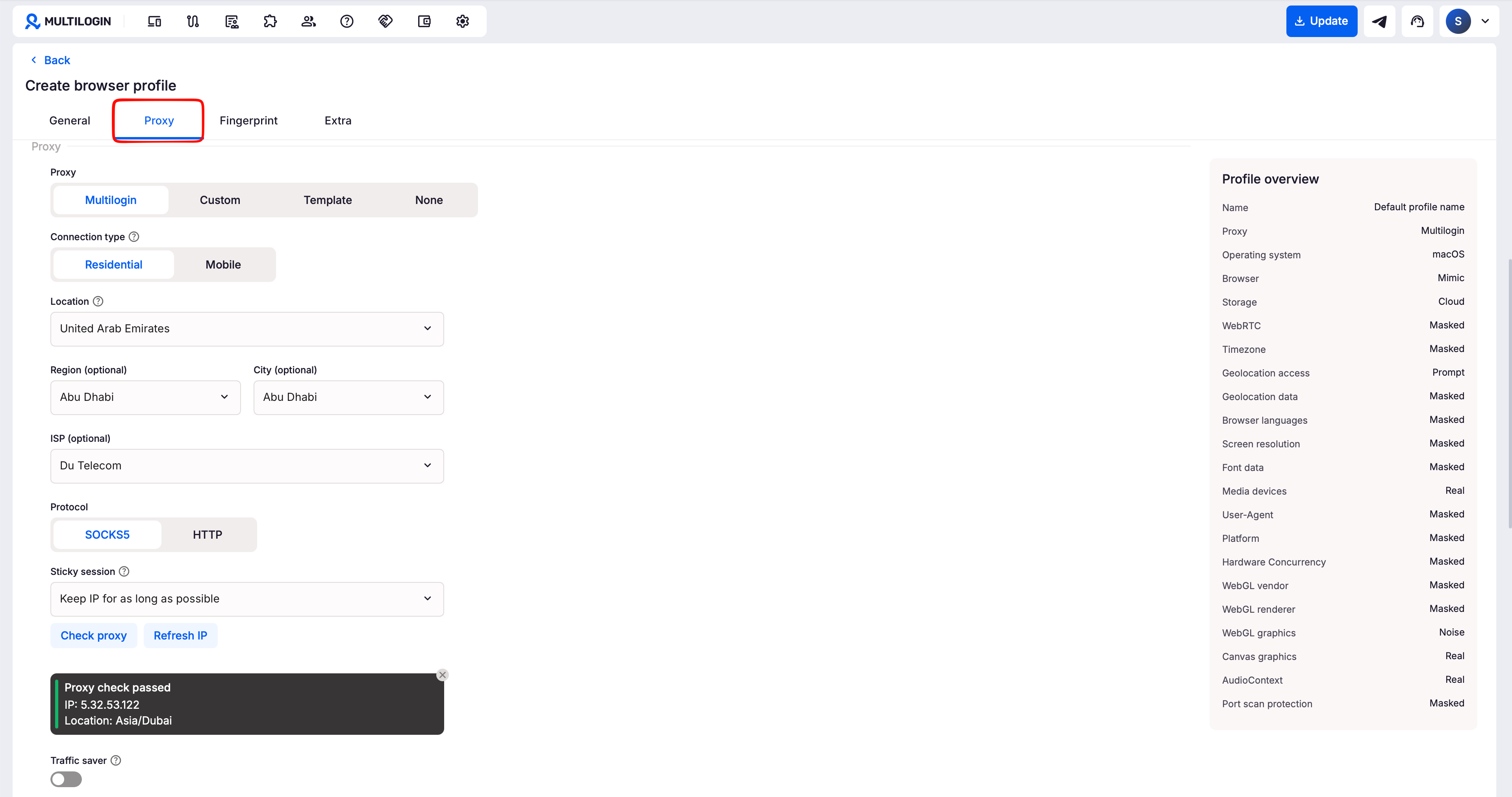 The Proxy section of profile settings — paste a FonProxy line here.
 Proxy check passed: Multilogin can reach the proxy and read the IP data.
Add a proxy to a new profile
- Open the Multilogin X app and go to Profiles, then Browser.
- Click Create to start a new browser profile. Give it a name you will recognize.
- Open the Proxy section of the profile settings.
- Choose Custom.
- Pick the protocol: HTTP, HTTPS or SOCKS5. All three work with FonProxy.
- Fill in the host, port, login and password. The quick way is to paste the whole line into the host field in the format
fon.ac:20001:u_4f1c92ab07de-t_30-s_ml01-c_us:YOUR_PASSWORD. Multilogin splits it into the other fields for you.
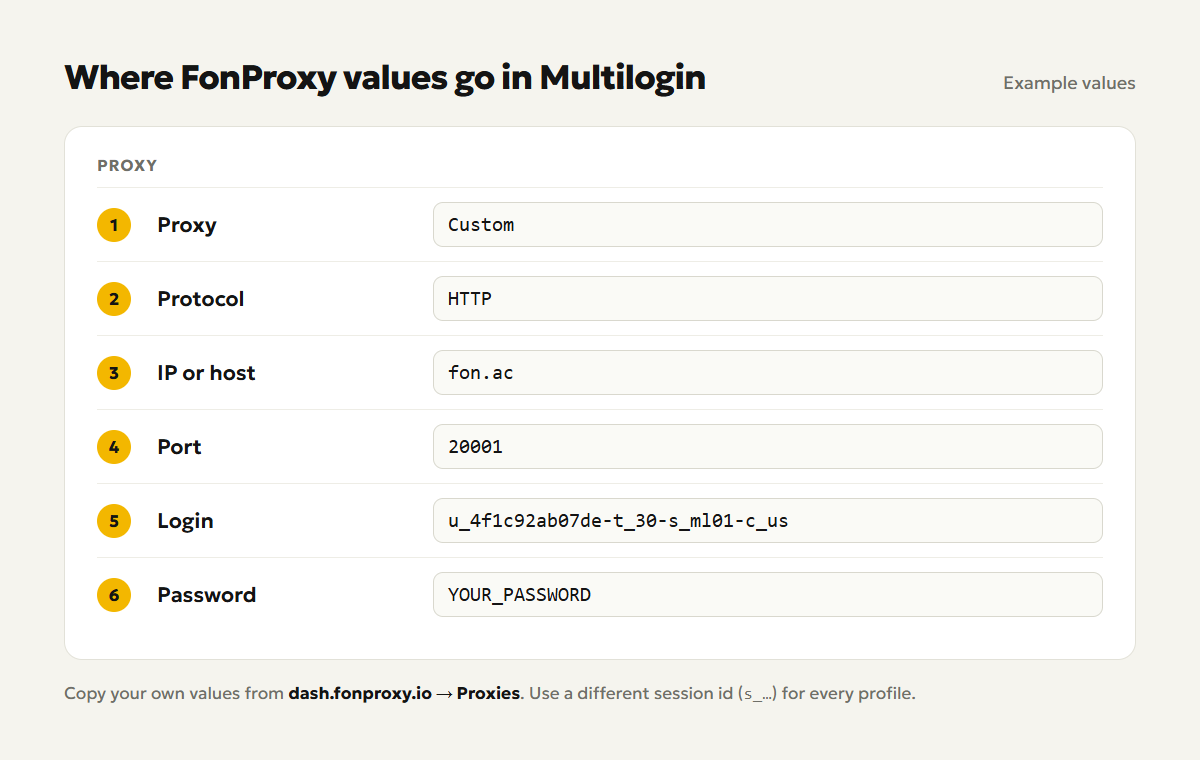
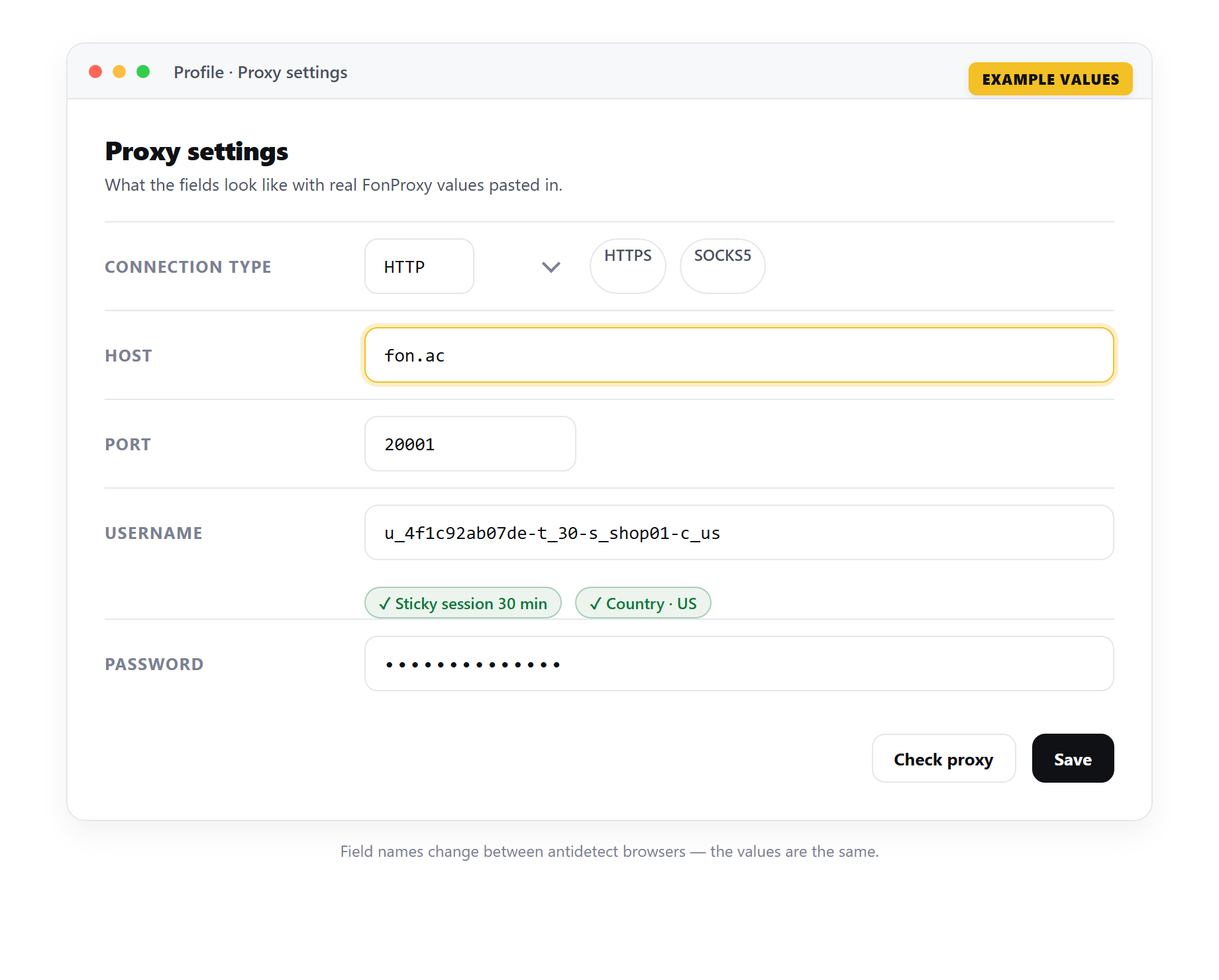 Example only — the field names change between antidetect browsers, but the FonProxy values stay the same.
- If you use the FonProxy IP whitelist instead of a password, enter only
fon.acand the port, and leave login and password empty. - Run Check proxy (see the next section).
- Save the profile, then start it from the profile list.
Check the connection
Multilogin tests the proxy for you. You will see Proxy check passed or Proxy check failed. A pass means the app reached the proxy and read the IP data it needs.
Then check from inside the profile:
- Start the profile.
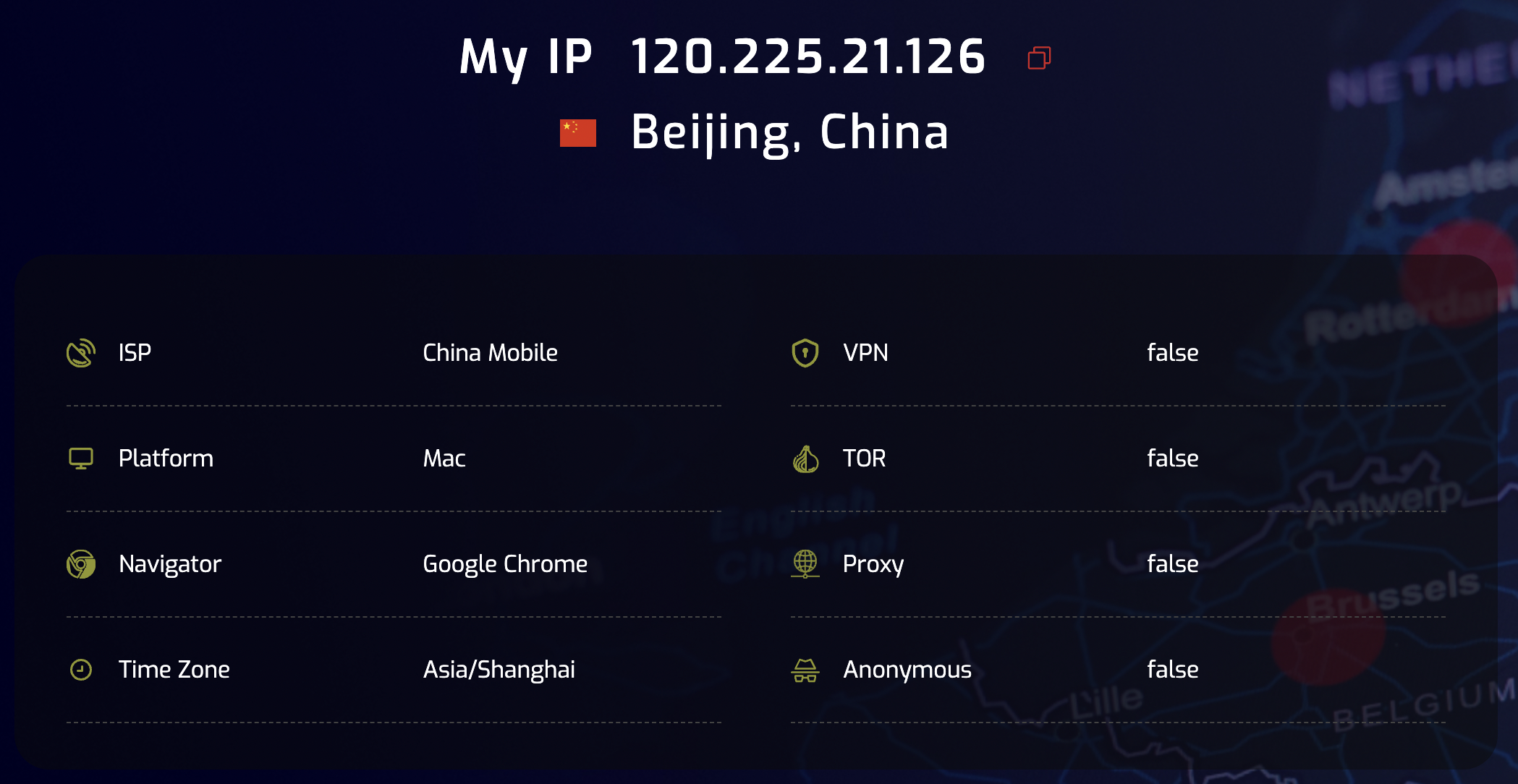
- Open any IP check site in the new browser window.
- Confirm that the IP is not your home IP and that the country is the one you set with
-c_.
If you used a sticky session, reload the page after a minute. The IP should stay the same.
Many profiles at once
Multilogin X has two ways to reuse proxies across profiles.
Quick profiles with a proxy list. Click Quick on the main screen. In the Proxy section choose Custom, then under Format choose Proxy list. Pick the protocol and paste up to 25 lines, one per line. Then choose Sequentially (top to bottom) or Randomly (random order, no repeats).
Give each line its own session id so every profile gets its own IP:
fon.ac:20001:u_4f1c92ab07de-t_60-s_ml01-c_us:YOUR_PASSWORD
fon.ac:20001:u_4f1c92ab07de-t_60-s_ml02-c_us:YOUR_PASSWORD
fon.ac:20001:u_4f1c92ab07de-t_60-s_ml03-c_us:YOUR_PASSWORD
For static IPs, use one line per IP. The username stays the same and only the port changes.
Proxy templates. Open Proxy templates in the left menu and click Create. Save a FonProxy proxy as a template, test it with Check proxy, and apply it to profiles later. The template manager also accepts a proxy list. Multilogin lists this feature for higher plans only, so check that your plan includes it.
Match timezone, language and location
Websites compare what the browser says with where the IP is. A US IP with a Berlin timezone looks odd.
In the fingerprint section of the profile settings:
- Timezone: keep Masked. Multilogin sets the timezone from the proxy location.
- Geolocation data: keep Masked. Coordinates follow the proxy location.
- WebRTC: keep Masked, so WebRTC shows the proxy IP and not your real one.
- Browser languages: Multilogin does not set these from the IP. Set them by hand to fit the country, for example German for a
-c_deproxy.
Set the proxy first, then check these values. If you change the country later, check them again.
Watch it in the app
The Multilogin team has an official video that walks through the same screens. Use the FonProxy values from the table above wherever the video enters proxy details.
Video: How to add a third-party proxy in Multilogin
Troubleshooting
| Symptom | Fix |
|---|---|
| Proxy check failed, or error 407 / auth failed | Copy the username and password again from the dashboard. Look for spaces, a missing suffix dash or a wrong port. |
| Timeout | Check the host is fon.ac and the port is the one shown for that proxy. Try the other protocol (HTTP or SOCKS5). Make sure a local firewall or VPN is not blocking the app. |
| Wrong country | Check the -c_ code in the username. Static IPs keep the country they were bought for, so pick another port or product. IP lookup sites can also disagree with each other. |
| IP changes mid-session | Add -t_<minutes>-s_<sessionid> to the username. The IP can still change after the session time ends; use 60 minutes or a static IP for long sessions. |
| Works on one computer, not on another (whitelist) | The IP whitelist only allows the IPs you added in the FonProxy dashboard. Add the public IP of the new computer, or switch to username and password. |
Frequently asked questions
Can two profiles use the same session id?
They can, but then they share one IP. Use a different session id for every profile.
HTTP or SOCKS5?
Both work with FonProxy. Pick one and keep it. If one gives timeouts on your network, try the other.
Do I need to set the timezone by hand?
No. Leave Timezone and Geolocation on Masked and Multilogin follows the proxy. Only the languages need your attention.
Should I use residential or static IPs?
Use sticky residential when you need many countries or many profiles. Use static IPs when an account must log in from the same IP for a long time.
Try it with a free FonProxy test
Spin up a FonProxy proxy and set up your first Multilogin profile in a few minutes. Open a free test or jump to the pricing.
Comments 0
Log in to your FonProxy account to join the discussion.
Log in to commentNo comments yet. Be the first to share your experience.