Dolphin Anty is an antidetect browser. Each browser profile gets its own fingerprint, cookies and storage, so one computer can run many separate identities. The fingerprint is only half of the story. If every profile goes out through the same IP address, websites can still link them together. Give each profile its own proxy and each identity looks like a separate person on a separate connection.
This guide shows you how to connect a FonProxy proxy to a Dolphin Anty profile, check it, scale to many profiles and keep the timezone and language in line with the IP.
Before you start
You need:
- Dolphin Anty installed and signed in.
- A FonProxy proxy. You can buy one on the pricing page or try one first with the free test.
- Your proxy details from the FonProxy dashboard, under Proxies. The copy buttons there give you ready-made lines.
Which product fits?
- Rotating residential with a sticky session. Good when you need many profiles in many countries. You pick the country and keep one IP per profile through the username.
- Static IP (static/ISP, private or mobile per-IP). Good when an account must log in from the same IP for weeks. Each IP has its own port and keeps its country for the whole period.
Get your FonProxy credentials
Open the FonProxy dashboard. Every proxy you own is one row — host, port, username and password. Hit Copy next to it and you are set.
- Host & port — the same host for all proxies, a different port per proxy.
- Username — your base username, with country or sticky-session suffixes if you need them.
- Password — unless you added your IP to the FonProxy whitelist, in which case leave it empty.
Build the proxy login
Every FonProxy proxy uses the same host. The port and username come from your dashboard.
| Field | Example value |
|---|---|
| Host | fon.ac |
| Port | 20001 (each proxy has its own port, starting at 20001) |
| Username | u_4f1c92ab07de-t_30-s_iall27-c_us |
| Password | YOUR_PASSWORD |
For rotating products, you add settings to the end of your base username (u_4f1c92ab07de):
- Country:
-c_plus a two-letter ISO code, for example-c_us,-c_gb,-c_de,-c_bror-c_jp. Leave it out to get any country. - Sticky session:
-t_<minutes>-s_<sessionid>. Minutes can be 15, 30 or 60. The session id is any short string you choose, such asiall27. - Without
-t_..-s_.., the IP changes on every request. That breaks logins, so do not use it for antidetect profiles.
For antidetect work, use a sticky session, give every profile its own session id, and pick the country where the account is supposed to live.
For IP products, the username has no suffixes. Use the base username and the port of the IP you want.
FonProxy supports HTTP, HTTPS and SOCKS5. You can also skip the password by adding your own IP to the whitelist in the FonProxy dashboard.
Step by step with screenshots
Create a profile and attach a proxy in one flow.
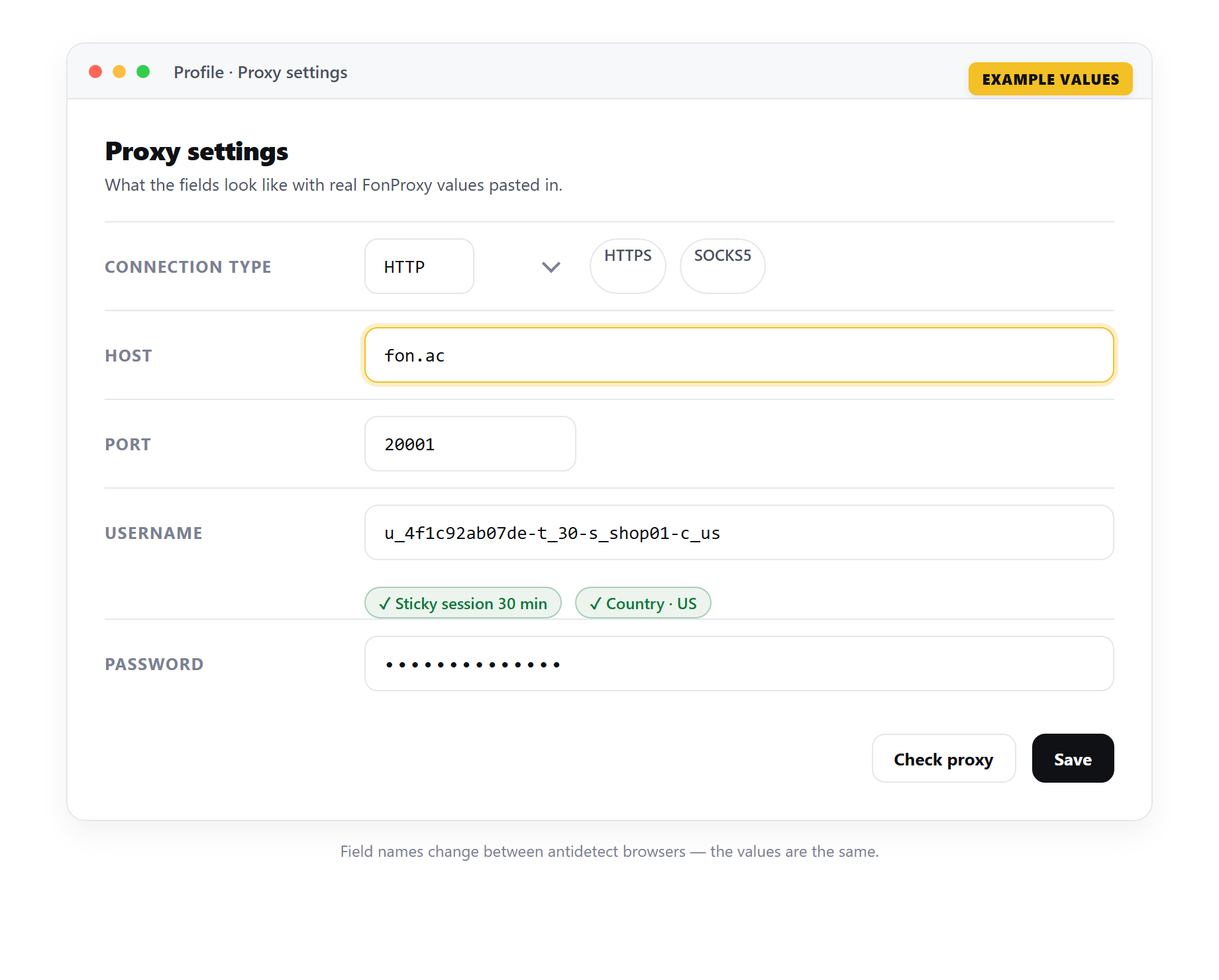 Example only — the field names change between antidetect browsers, but the FonProxy values stay the same.
Pick HTTP or SOCKS5 and paste the FonProxy credentials.
Example only — the field names change between antidetect browsers, but the FonProxy values stay the same.
Pick HTTP or SOCKS5 and paste the FonProxy credentials.
Change the proxy on a saved profile from the Proxies screen.
Bulk-import a proxy list — one FonProxy line per profile.
Add a proxy to a new profile
- Open Dolphin Anty and click Create profile in the top right corner.
- Type a Profile name, for example
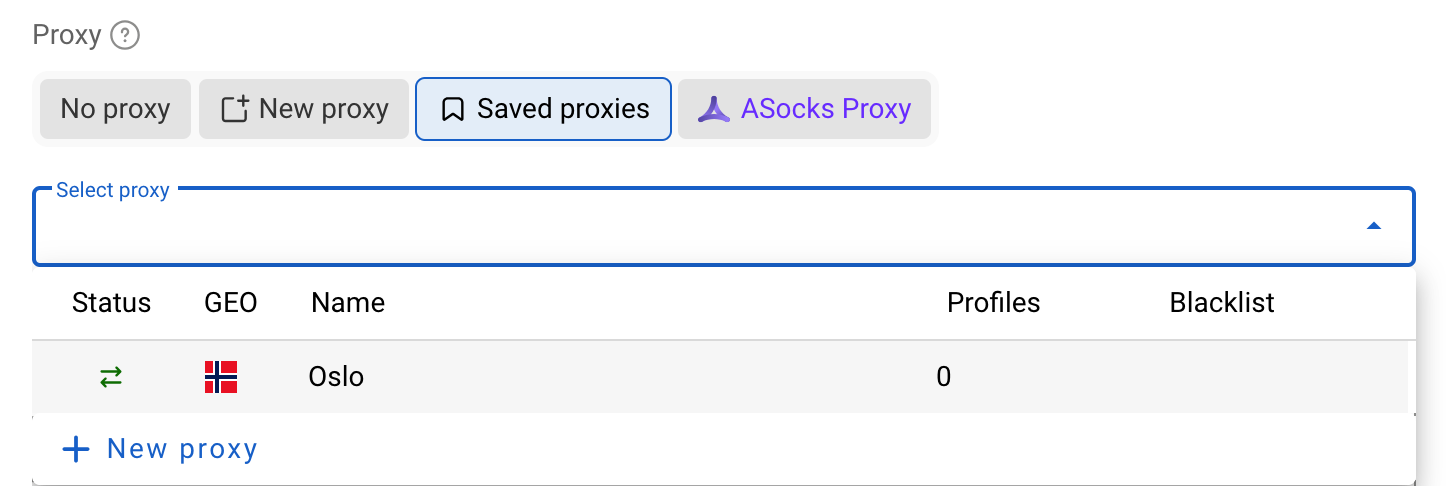
shop-us-01. - In the Proxy field, choose New proxy.
- Paste your proxy line. Dolphin Anty accepts
host:port:login:passwordandlogin:password@host:port, and you can put the protocol in front. For example:http://fon.ac:20001:u_4f1c92ab07de-t_30-s_iall27-c_us:YOUR_PASSWORD. Usesocks5://instead ofhttp://if you prefer SOCKS5. - Leave Link to change IP empty. FonProxy sessions are controlled by the username, not by a link.
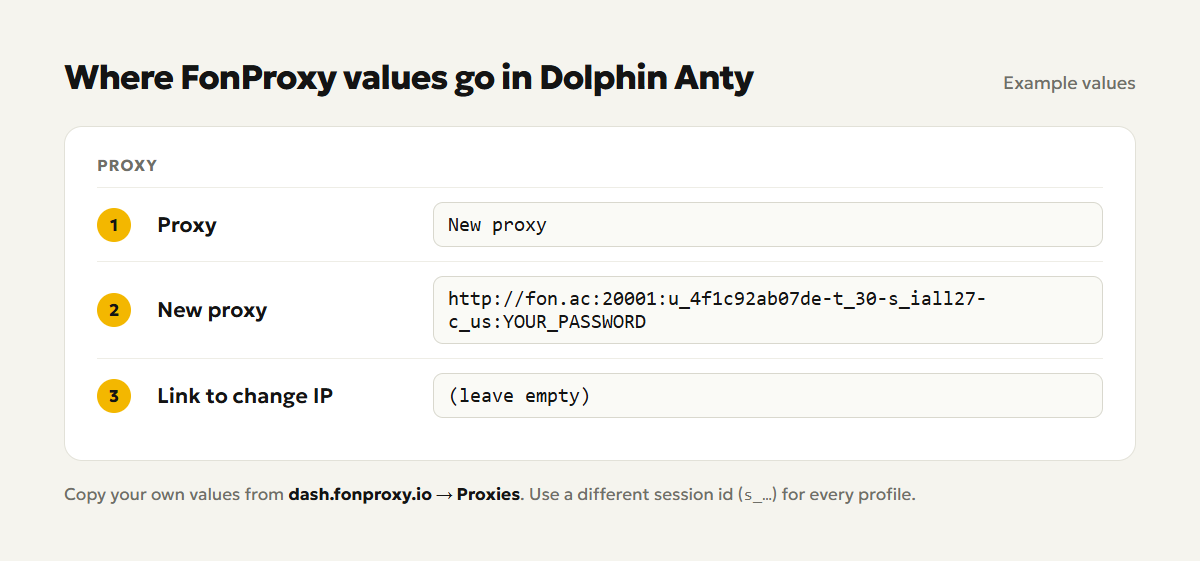
- Pick a profile type if you want one. It only helps you sort profiles.
- Click Create profile at the bottom of the window.
To change the proxy of an existing profile, open the profile menu (three dots), choose Edit, set a new proxy and click Save.
If you plan to reuse a proxy, you can also add it on the Proxy screen with Add Proxy and later pick it from the list in any profile.
Check the connection
Start with Dolphin Anty's own checker. Next to the proxy line there is an arrows icon. Click it. Dolphin Anty tests the proxy and shows its location and timezone. A red mark means the check failed.
Then confirm it from inside the profile:
- Click Start on the profile.
- Open any IP check website in the new browser window.
- The page should show an IP in the country you chose, not your home IP.
- Reload after a few minutes. With a sticky session the IP should stay the same.
If the built-in checker fails but the proxy works elsewhere, your network may be blocking the checker. Try another connection before you change the proxy.
Many profiles at once
Dolphin Anty has a mass creation feature. In the import window, click Download template, fill one row per profile and keep the column order. Put the proxy for each row in the proxy column, set the proxy option to take it from file, click Check data and then Create profile.
Give every row its own session id. Here are three sample lines:
http://fon.ac:20001:u_4f1c92ab07de-t_30-s_k3m9qa-c_us:YOUR_PASSWORD
http://fon.ac:20001:u_4f1c92ab07de-t_30-s_p7x2lb-c_us:YOUR_PASSWORD
http://fon.ac:20001:u_4f1c92ab07de-t_30-s_w5d8rt-c_us:YOUR_PASSWORD
On paid plans you can also select several existing profiles, click Change Proxy in the bottom bar and assign a new or saved proxy to all of them. Avoid giving many profiles the exact same line. That would put them on one IP.
Match timezone, language and geolocation
The IP is not enough if the browser says something different. A US IP with a European timezone looks odd.
In the profile settings, keep these on Auto:
- Timezone: taken from the proxy IP.
- Language: set from the proxy country.
- Geolocation: taken from the proxy IP.
For WebRTC, choose Altered. It shows the proxy IP instead of your real one. The Real option exposes your own address, so avoid it.
If you switch any of these to manual, set values that fit the proxy country.
Troubleshooting
| Symptom | Fix |
|---|---|
| Auth failed or HTTP 407 | Copy the username and password again from the dashboard. Check for spaces and that the suffixes are joined with -. |
| Timeout or "Error checking connection to proxy" | Check the host is fon.ac and the port is yours. Try SOCKS5 instead of HTTP. Try another network in case yours blocks the checker. |
| Wrong country | Check the -c_ code in the username. Use an ISO code such as gb, not uk. For IP products, the country is fixed per IP, so pick the port of the right IP. |
| IP changes mid-session | Add -t_30-s_<id> to the username. When the sticky time ends, the IP can change; use 60 minutes for longer sessions. |
| Whitelist login works on one PC but not another | Whitelist sign-in only accepts listed IPs. Add this computer's public IP in the FonProxy dashboard, or use username and password. |
Frequently asked questions
Should I use HTTP or SOCKS5?
Both work with FonProxy. If one fails on your network, try the other. Pick the matching prefix in the proxy line.
Can two profiles share one session id?
They would share the same IP. Give each profile its own session id.
What happens when the sticky time runs out?
You may get a new IP. Keep the same session id to stay as stable as possible, and use 60 minutes for long work.
Do I need a link to change IP?
No. With rotating products you change the IP by changing the session id in the username. Ready to try it? Get a proxy from the free test (https://fonproxy.io/en/test) and set up your first Dolphin Anty profile.
Try it with a free FonProxy test
Spin up a FonProxy proxy and set up your first Dolphin Anty profile in a few minutes. Open a free test or jump to the pricing.
Comments 0
Log in to your FonProxy account to join the discussion.
Log in to commentNo comments yet. Be the first to share your experience.